Flowframes
Create smoother, higher-frame-rate video with AI-generated frames. Flowframes turns 24 or 30 FPS footage into fluid 60, 120 or custom-frame-rate video using RIFE and other advanced interpolation models - all processed locally on your own GPU.
Free download · Flowframes 1.36.0 · Windows 10 & 11 · build options
Smoother motion, generated between the original frames
Flowframes analyses the motion between existing frames and generates new ones that follow that movement - for a higher frame rate, smoother motion and cleaner slow motion. Unlike simple frame blending, AI interpolation reconstructs where objects should be at each new moment in time, preserving clarity that conventional resampling tends to lose.
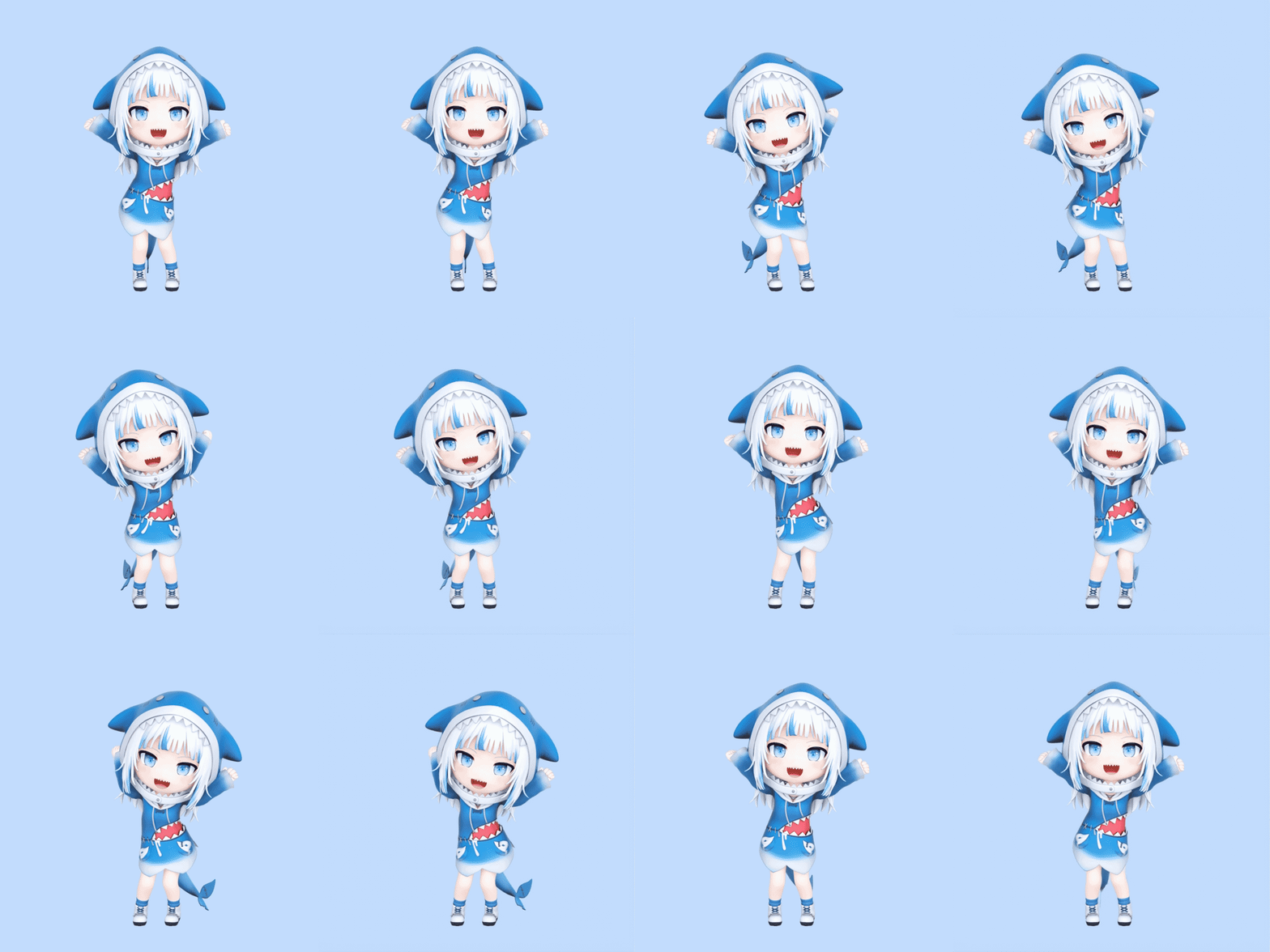

Built for real video workflows
Made for video editors, animators, visual artists, gamers and restoration workflows - anyone who needs better motion without rebuilding a project frame by frame.
Convert 24 or 30 FPS to 60 FPS
Increase the frame rate of films, edits, gameplay captures, screen recordings and generated video while keeping the original duration.
Create smoother slow motion
Generate extra frames before slowing footage down in your editor, for cleaner slow-motion that does not rely on duplicated or blended frames.
Interpolate 2D animation
Detect and remove repeated frames before interpolation to get smoother motion from anime, motion graphics and content drawn on twos or threes.
Complete 3D renders faster
Render alternate frames from a 3D scene, then generate the in-between frames with Flowframes to cut rendering time on suitable shots.
Improve AI-generated video
Smooth clips produced at low or inconsistent frame rates. Scene detection and de-duplication make Flowframes a natural fit for generative-video workflows.
Create seamless animated loops
Loop interpolation generates frames between the final frame and the first frame so an animated loop returns smoothly to its starting point.
Process image sequences
Import PNG, JPEG and other supported image sequences directly, then export the result as a video, animated image or new frame sequence.
How Flowframes works
Three steps from source file to finished, higher-frame-rate video. No separate editor required.
Add a video or image sequence
Drop in a supported video, GIF or sequence of images. Flowframes reads common formats including MP4, MKV, MOV, WEBM, GIF, PNG and JPEG.
Choose the interpolation settings
Pick an interpolation factor or target frame rate, choose the AI model, and adjust optional controls. The defaults work well for many videos.
Export the result
Encode to MP4, MKV, WEBM, MOV, GIF or an image sequence. Audio, subtitles and compatible metadata can be carried over from the source.
RIFE, DAIN and more - built around the best models
Flowframes is designed around RIFE, a fast AI model for frame interpolation, with additional and experimental models available depending on the build. For most people, RIFE is the recommended start.
RIFE CUDA
Recommended for compatible Nvidia GPUs when speed is the priority. CUDA processing can use half-precision acceleration to reduce VRAM use and run faster on supported hardware.
RIFE NCNN (Vulkan)
Runs through the NCNN framework using Vulkan, for broad compatibility across supported Nvidia, AMD and Intel graphics - no Nvidia CUDA environment required.
DAIN NCNN
An alternative interpolation model available through Vulkan-compatible NCNN processing. Useful for testing different motion characteristics and comparing against RIFE.
FLAVR & XVFI
Experimental model options in supported builds. They provide additional approaches for specific footage, testing and advanced interpolation workflows.
Made for Nvidia, AMD and Intel graphics
Flowframes does not require an Nvidia GPU for standard NCNN processing - Vulkan-based models run on supported graphics hardware from multiple vendors.
Nvidia GPU
Use RIFE CUDA for the fastest processing on supported Nvidia hardware, or run the Vulkan-based NCNN implementation.
AMD GPU
Use RIFE NCNN or another available NCNN model through Vulkan. An Nvidia GPU is not required to use Flowframes.
Intel GPU
Modern Vulkan-capable Intel graphics can use the NCNN path. Performance and compatibility depend on the specific GPU and driver.
Actual speed depends on the model, source resolution, interpolation factor, GPU performance, available VRAM and encoding settings.
Smart processing for clean results
Frame interpolation is only as good as how it handles duplicates, cuts and audio. Flowframes covers all three so you spend less time fixing artifacts.
Intelligent frame de-duplication
Many 2D animations hold the same drawing across several frames. Flowframes can detect and remove those duplicates before interpolation, so the model works with real movement instead of identical images - and it stays off for camera footage and gameplay.
Scene-change protection
A hard cut has no continuous motion across it. Flowframes detects scene changes and avoids generating frames across recognised cuts, preventing the morphing artifacts that ruin automated interpolation. Sensitivity is adjustable.
Keep audio, subtitles & metadata
Raising a video’s frame rate should not mean rebuilding its audio. Flowframes can transfer audio tracks, subtitle tracks and compatible metadata from the source, copying streams without re-encoding where the container allows.
Flexible input and output
Import common production and distribution formats, then export to the container and codec you need.
Input
Output
Export codecs include H.264, H.265 / HEVC, VP9, AV1, subject to the selected encoder and hardware configuration.
Advanced control, without the busywork
Sensible defaults let you start immediately. These controls are there when a project needs them.
Automatic encoding
Encode the output while interpolation is still running, and optionally delete processed frames to save temporary storage.
High-resolution mode
RIFE UHD Mode adjusts model scaling for high-resolution footage; a maximum processing resolution can also be set for speed.
Custom output frame rates
Generate a multiplied frame rate or cap the export to a specific maximum, such as 24 FPS in to exactly 60 FPS out.
Transparent interpolation
Preserve and interpolate alpha transparency when the input, intermediate and output formats all support it.
Loop interpolation
Generate motion from the end of an animation back to its first frame to create a smoother repeating loop.
JPEG intermediates
Use JPEG intermediate frames to reduce storage use and speed up extraction when lossless PNG is unnecessary.
Manual processing stages
Run extraction, interpolation and encoding as separate steps when frames need to be inspected, edited or removed.
Multi-GPU configuration
Assign one or more supported GPUs by device ID for compatible processing modes and hardware setups.
Custom FFmpeg encoding
Configure codec, quality, bitrate, container and other export parameters with advanced FFmpeg options.
Custom file naming
Define output-name patterns from project and source variables for more consistent file organisation.
Download Flowframes for Windows
Free, open-source AI frame interpolation that runs on your own GPU - no uploads, no per-video fees, no cloud queues. Built for Windows 10 and 11.
Installer (.exe) · Flowframes 1.36.0 · Windows 10 & 11
Flowframes is open-source donationware: the newest early-access builds reach supporters first, and the source is always public. Want the very latest version? Support development and get early-access builds on Patreon.
System requirements
Flowframes runs interpolation locally on the Windows PC where it is installed. Older graphics hardware may lack the Vulkan features NCNN needs.
Minimum
- Windows 10 or Windows 11
- A Vulkan-capable graphics card
- A supported Nvidia, AMD or Intel graphics driver
- Storage for the source, temporary frames and exported result
Recommended
- A modern CUDA-capable Nvidia GPU
- 6 GB of VRAM or more
- 16 GB of system memory
- A modern multi-core Intel Core or AMD Ryzen CPU
- Solid-state storage for frame extraction and encoding
Not supported: GPUs such as the Nvidia GT 710 and Intel HD 3000/4000 series, and Windows 7.
When frame interpolation works best
AI interpolation performs best when movement is visible and reasonably predictable between adjacent frames. It creates plausible new frames - it cannot recover detail that was never in the source.
Strong use cases
- Camera movement with consistent motion
- Gameplay and screen captures
- Character animation
- Anime and hand-drawn animation (after correct de-duplication)
- CGI and 3D rendering
- Motion graphics
- Slow-motion preparation
- AI-generated clips with low frame rates
Harder for any model
- Heavy motion blur
- Large objects appearing or disappearing between frames
- Fast cuts that are not detected correctly
- Flashing lights or rapid exposure changes
- Reflections, particles, smoke, water or transparent objects
- Severe compression artifacts or corrupted source timing
Frequently asked questions
Make every frame count
Generate smoother motion, prepare cleaner slow motion and interpolate animation - from one focused Windows app. Free, open source, and processed entirely on your own GPU.